

How to Make the Cardo Dinner AI Video (2026)
Put Yourself and a Friend Into the "Cardo, Your Dinner Is Ready" Cheese Stick Skit With Just One or Two Photos
The Cardo Dinner AI video generator turns your photos into a 12-second skit where a server in a black apron presents giant cheese sticks, feeds one to the eater by hand, and delivers the famous lines — all with your faces, your hair, and your body shapes. This guide walks through every step in the studio, explains what the template keeps from your photos, and answers common questions about the Cardo Dinner AI video.
What Is the Cardo Dinner Meme?
"Cardo, your dinner is ready" comes from TikTok creator @realjayllnn and his friend Cardo. In their #dinner skits, a server wearing a black apron and long nails presents a huge plate, asks "Is it giving what it needs to give?" and often feeds Cardo by hand while he eats for the camera.
The hot cheese stick episode from April 16, 2025 — giant red spicy-crusted cheese sticks with a bowl of nacho cheese — has 11.8 million views. Another episode from May 20, 2025, hit 16 million views.
The line came back in October 2026. On October 14, a college football page put the audio on a new edit that reached 660,000 views. By the end of October, AI video apps had turned the skit into a two-photo template.
Made on AI Trend Video from two photos of made-up friends: he eats, she serves and says both lines. 12 seconds, 9:16, Standard 720p.
The Cardo Dinner Skit, Line by Line
Our template recreates the cheese stick skit in four beats over 12 seconds. The scene is written by us — it is not copied from the original video, and the original audio is not used. An AI-generated voice speaks the server's lines with matching mouth movement. There is no music.
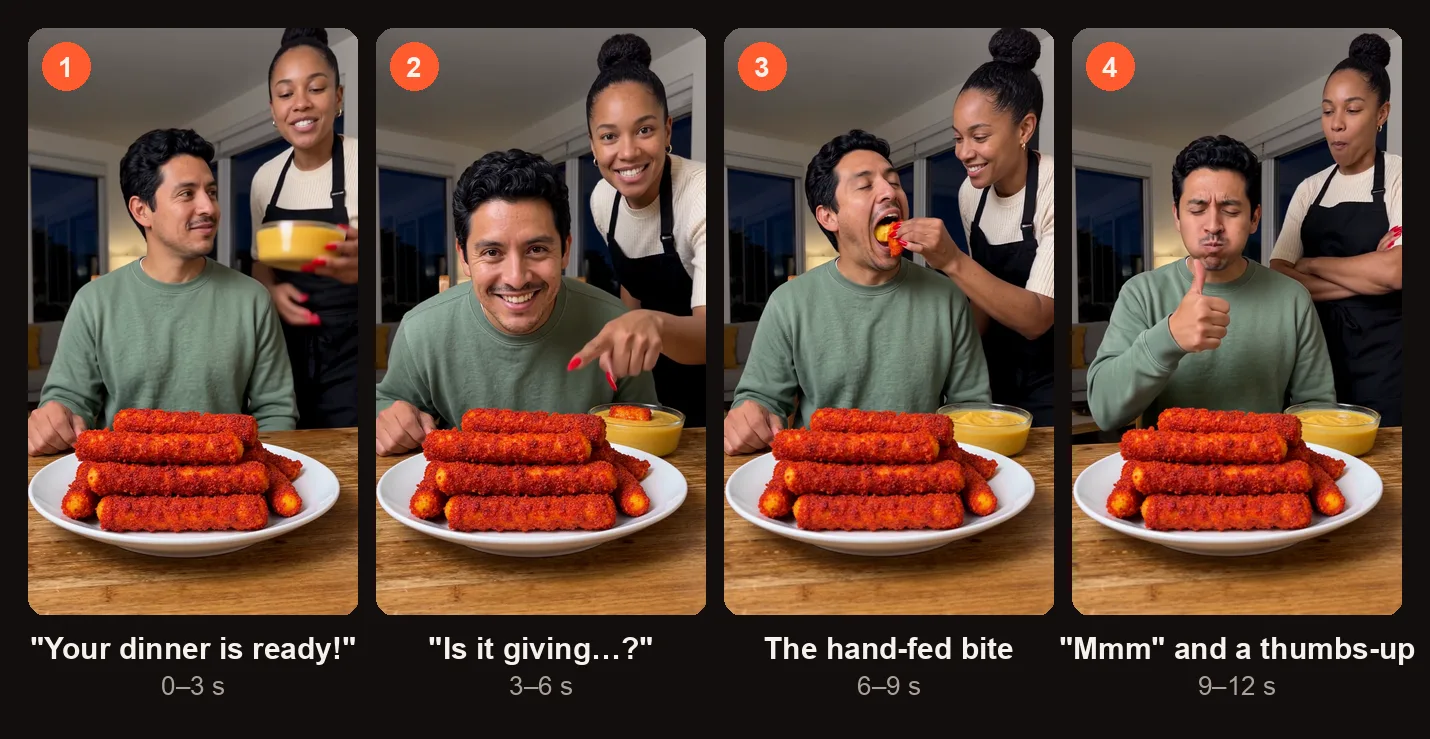
The four beats of the 12-second skit, from the sample on this page.
| Time | What happens |
|---|---|
| 0–3 s | The server presents the plate and says "Cardo, your dinner is ready!" |
| 3–6 s | The server points at the cheese sticks with a red nail and asks "Is it giving what it needs to give?" while the eater leans in and grins. |
| 6–9 s | The server dips a cheese stick in the nacho cheese and feeds it to the eater by hand — a crunchy bite. |
| 9–12 s | The eater chews, hums "Mmm!" and gives a thumbs-up while the server folds their arms and nods. |
The setting is a modern living room at night with big dark windows. The phone stands on the dining table and does not move. A big plate of giant red, spicy-crusted cheese sticks and a glass bowl of warm nacho cheese sit at the bottom of the frame. The line always says "Cardo," whatever your friend's real name is, and the food is always the same.
Who Eats and Who Serves: What the Cardo Dinner AI Video Keeps From Your Photos
The template maps each photo to a role in the skit. Here is what carries over and what the video adds on its own.
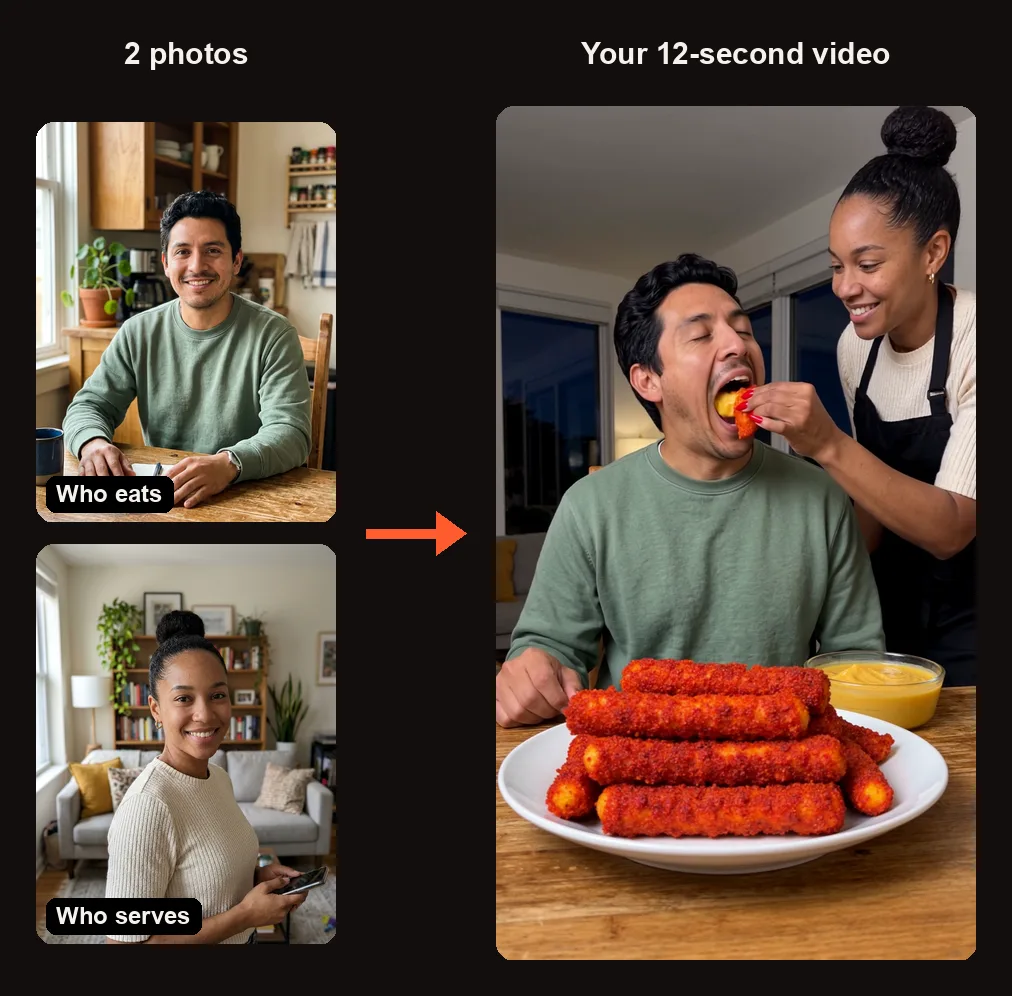
Who eats and who serves: two photos in, one dinner skit out. The apron and the red nails come from the template.
| Slot | Photo | What happens |
|---|---|---|
| Who eats (required) | One clear photo | Keeps the face, hairstyle, skin tone, body shape, and outfit. Sits right behind the plate, facing the camera. |
| Who serves (optional) | One clear photo, or leave empty | Keeps the face, hairstyle, skin tone, and body shape. Gets a black apron over their own clothes and long glossy red nails. Stands behind the eater. |
If you leave the server slot empty, a made-up server feeds you instead. You can also use the "Cast from a group photo" button to tap both faces in one photo; only the cut-out faces are uploaded.
How to Make a Cardo Dinner AI Video
Open the Cardo Dinner AI video generator in your browser. No app to install, no prompt to write. When you press Create, you sign in with Google.
Step 1: Seat the Eater and Pick the Server
The studio shows "Add 1 to 2 photos" with two slots. The first slot, "Who eats," is required — tap "Tap to add a photo" and pick a photo of the person who will sit behind the cheese sticks. The second slot, "Who serves," is optional. Upload a photo of the friend who will wear the apron, or leave it empty for a made-up server.
If you have a group photo with both people in it, tap "Cast from a group photo," then tap each face. The studio cuts out only the faces.
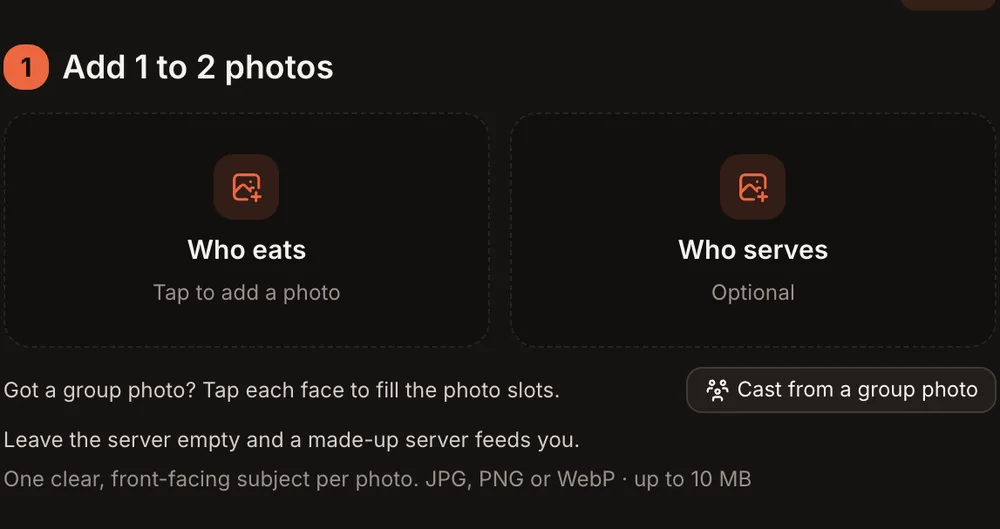
Who eats needs a photo; leave Who serves empty and a made-up server feeds you.
Step 2: Add Clear, Waist-Up Photos
Pick photos where the face is well lit, looking roughly at the camera, and visible from at least the waist up. The Cardo Dinner AI video uses your face, hair, skin tone, and body shape to build the characters, so the clearer the photo, the better the result. Avoid sunglasses, heavy shadows, or photos where someone else's face overlaps yours.
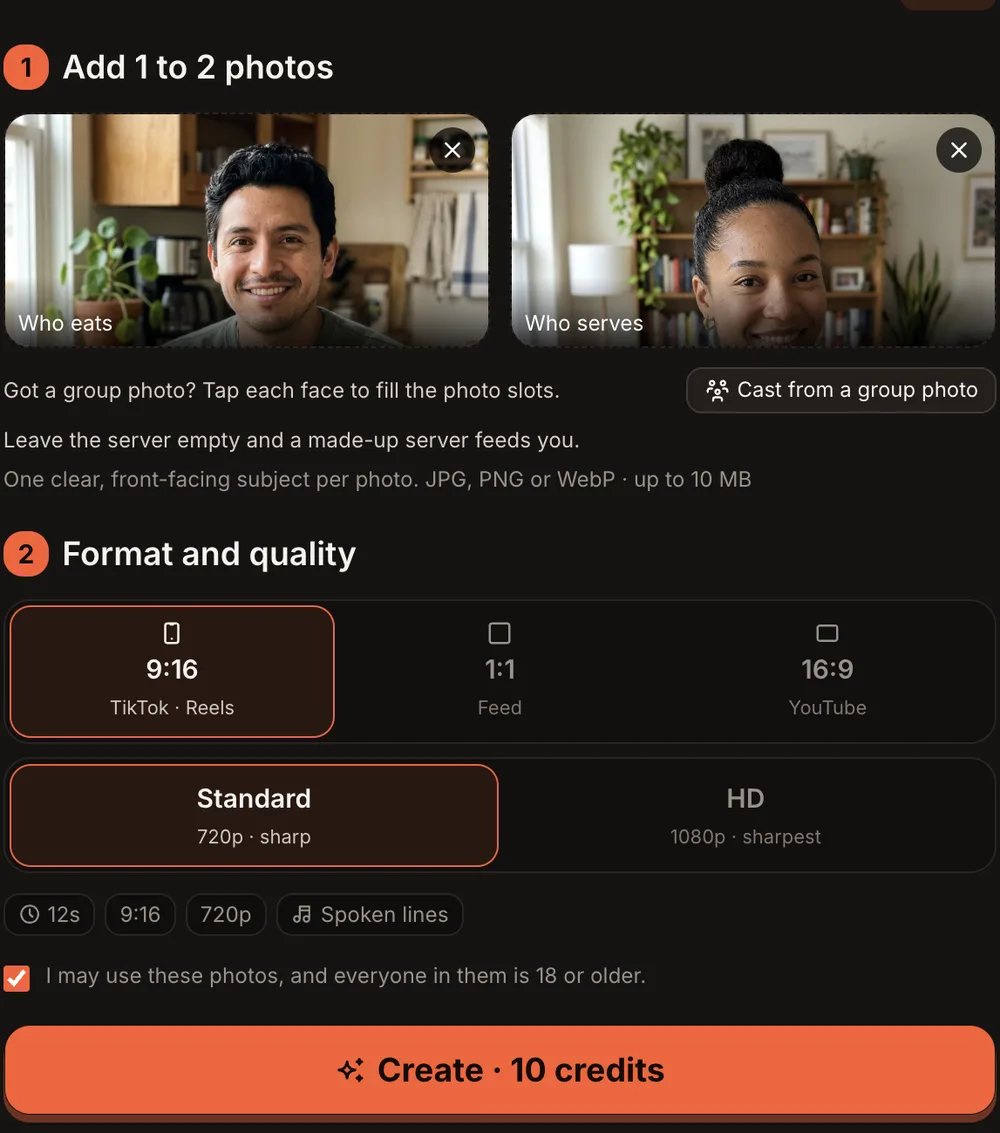
Both slots filled, 9:16 and Standard (720p): the button reads Create · 10 credits.
Step 3: Choose the Format and Quality
Under "Format and quality," pick the format and the quality.
| Option | What you get |
|---|---|
| 9:16 (TikTok · Reels) | Vertical video for TikTok and Instagram Reels |
| 1:1 (Feed) | Square video for Instagram feed posts |
| 16:9 (YouTube) | Landscape video for YouTube |
| Standard | 720p · sharp — 10 credits |
| HD | 1080p · sharpest — 20 credits |
| Length | 12 seconds |
| Sound | AI-generated voice with the server's lines, no music |
For TikTok or Reels, 9:16 at Standard is enough; pick HD if you want a crisper image.
Step 4: Press Create and Wait for the Email
Check the consent checkbox, then tap the orange button. It reads "Create · 10 credits" for Standard or "Create · 20 credits" for HD. Rendering usually takes 3 to 12 minutes. You can close the tab — we email you when the video is ready. The finished MP4 lands in My videos with no watermark.
If a render fails, the credits come back automatically.
Step 5: Check the Skit and Post It
Open My videos, tap the clip, and look for these things before you post:
- The faces — both people should look like the photos you uploaded.
- The lines — the server should clearly say "Cardo, your dinner is ready!" and "Is it giving what it needs to give?"
- The bite — the cheese stick should dip into the nacho cheese and reach the eater's mouth.
- The nails — the server's hands should have long glossy red nails.
If something clearly did not work, press "Report a problem" in My videos within 7 days. We review every report and either return the credits or refund the payment for that video.
When the video looks right, tap "Download MP4" and post it. Tap "Make another" if you want to try different photos or a different format.
Cardo Dinner AI Video Ideas
- The roommate who always cooks. Cast them as the server and yourself as the eater. It already fits.
- A partner's birthday dinner. Drop in their photo on the eater side and serve them cheese sticks in the apron.
- The friend who never cooks. Put them in the server slot for the joke — the person who has never made a meal now feeds you by hand.
- A reply to "what's for dinner?" Someone texts you asking what's for dinner. Reply with the Cardo Dinner AI video instead of words.
- Just you. Upload only your photo in the eater slot. Leave the server empty and let a made-up server bring you the plate.
Best Photos for the Cardo Dinner AI Video
- Use a recent waist-up photo with the face sharp and clear.
- Face the camera or turn just slightly. A full side profile gives the video less to work with.
- Good, even lighting on the face.
- Waist-up is enough. The eater sits behind the plate and the server stands close behind, so legs are not needed.
- One face per photo unless you are using "Cast from a group photo."
Common Problems and What to Try
| Problem | What to try |
|---|---|
| The face does not look right | Use a sharper, front-facing photo with even lighting. Avoid sunglasses or hats that hide your forehead. |
| The wrong person eats | Check the slots: the photo in "Who eats" sits at the table and the photo in "Who serves" stands behind. Swap them and make it again. |
| The voice is hard to hear | Turn up your volume and check that the phone is not on silent. The skit has voice only, no music. |
| The video is still rendering after 15 minutes | You can close the tab and wait for the email. If it never arrives, check My videos. If it failed, the credits return automatically. |
| The finished video clearly did not work | Press "Report a problem" in My videos within 7 days. We review every report and either return the credits or refund the payment for that video. |
Cardo Dinner AI Video FAQ
Is one photo enough?
Yes. The "Who eats" slot is the only required photo. If you leave "Who serves" empty, a made-up server appears in the skit and feeds you by hand.
Who says the lines, and can I change the name?
The server's lines are spoken in an AI-generated voice with matching mouth movement. The skit always says "Cardo" — you cannot change it to another name. That is part of the meme.
Does it use the original audio from @realjayllnn?
No. The original audio is not used. The scene is written by us with an AI-generated voice. AI Trend Video is independent and not affiliated with any artist, label, brand, or platform named in this guide.
Can I change the food?
No. The plate is always giant red, spicy-crusted cheese sticks with a glass bowl of warm nacho cheese. That is the dish from the original skit, and the template keeps it the same every time.
How long is the video, and how long does it take to render?
The Cardo Dinner AI video is 12 seconds long. Rendering usually takes 3 to 12 minutes. You can close the tab and we will email you when it is ready.
How much does it cost?
Every trend on the site costs the same. Standard (720p) is 10 credits. HD (1080p) is 20 credits. One-time credit packs start at $9.99 for 10 credits and never expire. Monthly plans start at $39.99 for 50 credits a month. There is no free trial.
Make Your Own Cardo Dinner AI Video
Open the Cardo Dinner AI video generator, add one or two photos, pick your format, and press Create. The whole process takes a few minutes, and the MP4 downloads with no watermark.
If you like skit-style trends with spoken lines, check out our guide on the Hit the Road Dude AI video, another meme with dialog. For something quieter, the Bicep Heart AI video works well with a single photo. Both follow the same studio steps.
Your photos and videos are private to your account and never shown in a public gallery. Only upload photos of adults (18+) who agreed to appear — no children, celebrities, or public figures. This trend takes people only, no pets.