

Santa Caught on Camera AI
Santa Caught on Camera AI turns one photo of your living room or porch into night footage from a home security camera. Santa tiptoes in with his sack, leaves presents under the tree, spots the camera and says "Merry Christmas" with the name you type. It is the Santa cam video kids watch on Christmas morning, made in a few minutes.
- 1 photo of your room
- Santa says the name
- 10 seconds
- 9:16 · 16:9 · 1:1
What People Are Making
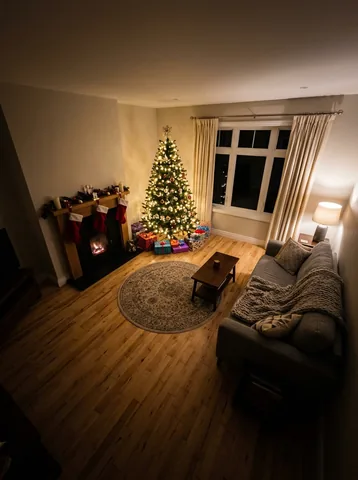
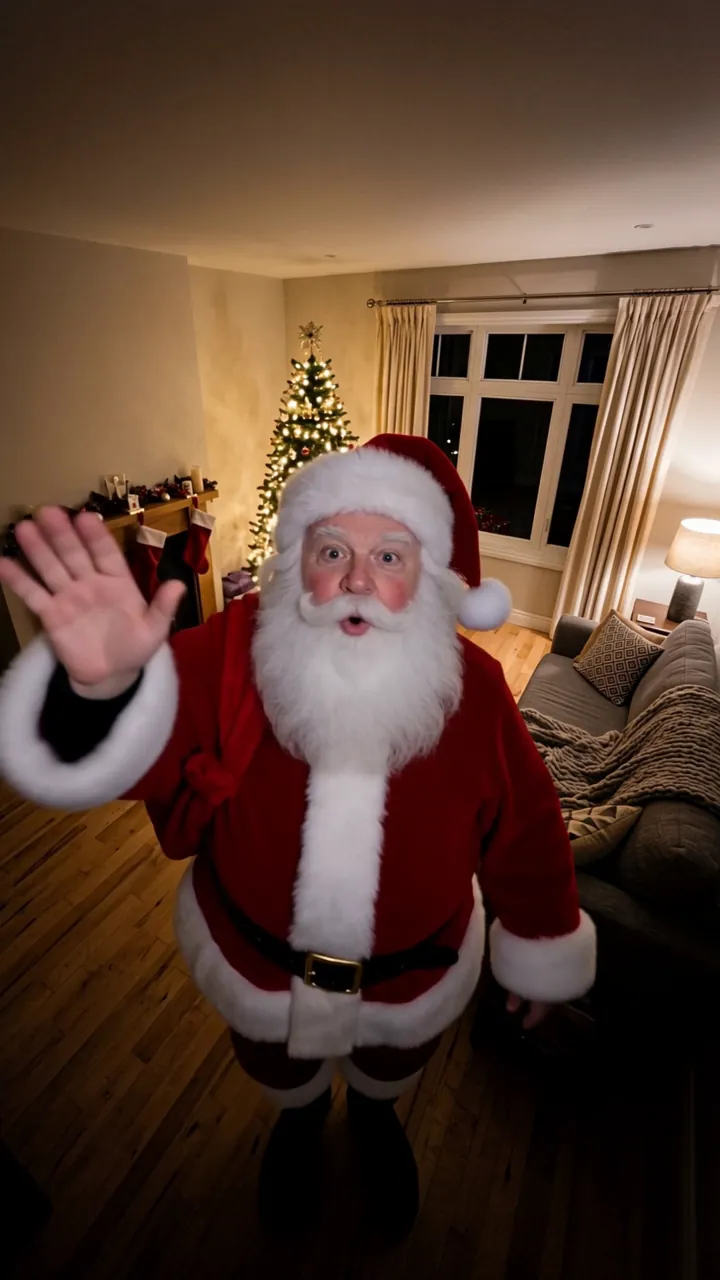
This Santa caught on camera clip came from the living room photo next to it and the name "Mia", with no editing afterwards. The room in the photo is AI-made. Your own clip keeps your room and decorations from the photo, and every render plays out a little differently.
Santa caught on camera sample: presents by the tree
Seen from a camera high in the corner, Santa walks in past the sofa, kneels by the presents next to the tree and fireplace, then walks up to the camera, waves and says "Ho ho ho, Merry Christmas, Mia!" The tree, stockings, rug and sofa stay where they are in the photo. 10 seconds in 9:16, made in about two minutes at 720p.
How to Make a Santa Caught on Camera Video
- 1
Photograph the room
Take a photo of the living room, the tree or the front porch from high in a corner, the way a security camera sees it. Nobody should be in the shot.
- 2
Type the name
Write the name Santa says, like Mia or Parker family. Letters only, up to 30 characters, and you can name two or three children at once.
- 3
Pick the format and create
Choose 9:16 for phones, 16:9 for the TV or 1:1, then Standard 720p for 10 credits or HD 1080p for 20. The Santa cam video lands in My videos and we email you.
Best Photos for a Santa Cam Video
Shoot from up high
Hold the phone high in a corner and point it slightly down. That angle makes the Santa cam clip look like real security camera footage.
Show the tree and the floor
Santa needs room to walk in and kneel, so keep the tree, some floor and a doorway or sofa in the frame.
Lights on, nobody in it
Switch on the tree lights and a lamp and take the photo when the room is empty: no people, pets or faces.
A porch works too
For a doorbell Santa cam look, photograph the front door and porch at eye level. Santa leaves the presents by the door.
What Santa Does in the 10 Seconds
Every Santa caught on camera AI video plays out the same way, on a fixed camera that never moves.
0–3 s
Santa sneaks in
Santa Claus tiptoes into your room with a big red sack over his shoulder.
3–6 s
Presents under the tree
He kneels and sets wrapped presents under the tree, glancing around.
6–8 s
He spots the camera
Santa stands, walks toward the camera and looks straight into the lens.
8–10 s
"Merry Christmas, Mia!"
A wave and "Ho ho ho! Merry Christmas" with the name you typed.
Ways to Use Your Santa Cam Clip
A Santa caught on camera video works best when it turns up at the right moment on Christmas morning.
Christmas morning proof
Play the Santa cam clip on the TV while the presents are opened: this is the moment he came in.
The cookie plate
Leave a half-eaten cookie and an empty glass of milk by the tree, then show the Santa cam video as the evidence.
One clip per name
Make one Santa cam video for each child, or one for the whole family, and send them to the grandparents.
Your holiday greeting
Post the Santa cam clip on Instagram or Facebook as this year's family Christmas card.
What Is Santa Caught on Camera?
Santa caught on camera is the Christmas tradition of showing children proof that Santa really came: a snapshot or clip of him in their own home, taken by a home security camera. Camera companies have offered it for years; Alarm.com, for one, lets families add Santa to a still from their own camera and share it with #SantaSecurity.
Original posts
198Kplays
@frontdoorsanta on TikTokDecember 2, 2025
A Santa cam clip from a Ring doorbell at night, with the sleigh in the yard.
22Kplays
@realityglitchz on TikTokNovember 1, 2026
An AI porch-camera clip: a Santa who looks like a decoration stops a package thief.
Play counts on November 6, 2026.
Every December, doorbell and nanny-cam clips of Santa are shared on TikTok, Facebook and Instagram, and searches for Santa cam videos peak. AI now makes the clip from one photo: Santa walks through your real room, leaves the gifts and talks to your child by name.
Our Santa cam keeps the room from your photo and plays it back as a fixed night-time camera view: the warm glow of the tree, a little grain and Santa's own voice saying the name.
The video is AI-generated, so whether to keep the magic going is up to you. AI Trend Video is independent and not affiliated with any camera brand.
Santa Caught on Camera AI FAQ
How do I make a Santa caught on camera video?
Upload a photo of your room or porch, type the name Santa should say and create. The Santa cam video is ready in a few minutes as a 10-second MP4.
What is a Santa cam?
A home camera view, real or pretend, that "catches" Santa on Christmas Eve. Parents used to set one up next to the tree; now a Santa cam video can be made from one photo.
Does Santa really say my child's name?
Yes. Santa looks into the camera and says "Ho ho ho! Merry Christmas" with the name you typed, up to 30 characters of letters, like "Leo and Ava".
Will it look like my house?
Santa walks through the room from your photo: the same tree, sofa, floor and decorations, at night. Small details can shift, so use a clear, well-lit photo.
Can I use a screenshot from my security camera app?
Yes. A screenshot from your Ring, Nest or other camera app works well as the photo, because it already has the right angle.
Can a person or pet be in the photo?
No. Use a photo with nobody in it. Santa is the only person in the video.
Can I make a doorbell camera version?
Yes. Photograph your front door and porch at eye level, the way a doorbell camera sees it. In that Santa caught on camera video, Santa walks up, leaves the presents by the door and says the name into the camera.
Can I change what Santa says?
Santa always says "Ho ho ho! Merry Christmas" with the name you type. Other lines are not available yet, so put everyone you want greeted in the name, like "Leo and Ava".
Will my kids know the Santa caught on camera clip is AI?
It looks like night footage from a home camera, but it is made by AI. Whether you tell them is up to you; many families keep it as a Christmas morning surprise and explain later.
When should I make my Santa cam video?
Any time before Christmas Eve. Take the photo once the tree is up, make the Santa cam clip and keep it ready for Christmas morning.
How much does a Santa cam video cost?
Every trend costs the same: 10 credits for a Standard video and 20 for HD. One-time packs start at $9.99 for 10 credits and never expire; monthly plans start at $39.99 for 50 credits a month. There is no free trial.
What if my video looks wrong?
A failed render returns its credits automatically. If a finished video clearly did not work, report it from My videos within 7 days and we return the credits or refund the payment.
Who can see my photos and videos?
Only you. Photos and videos stay private in your account, and your photo goes to our video provider only to make the video.
Do I need an app?
No. It runs in your phone or computer browser, and the MP4 is ready to post on TikTok, Reels or Shorts.
Still have a question? support@aitrendvideo.io