

How to Make a Santa Caught on Camera Video
A step-by-step guide to turning a room photo into a security-camera clip of Santa delivering presents and saying your child's name.
Every December, parents look for a way to show their kids that Santa really visited. A Santa caught on camera video — a short clip that looks like it was recorded by a home security camera — is the proof. Now you can make one from a single photo and a name with Santa Caught on Camera AI.
What Is a Santa Caught on Camera Video?
It is a 10-second Santa cam clip that looks like grainy, night-time home security footage of the room in your photo. Santa walks in with a sack, leaves wrapped presents, spots the camera and speaks directly into the lens, saying your child's name. No app, no prompt, no editing.
Our Santa caught on camera sample was made from a photo of an empty, AI-made living room with a lit Christmas tree and a fireplace. The name was Mia.
Our sample Santa cam clip: Santa enters the living room, kneels by the tree, spots the camera, waves and says "Ho ho ho, Merry Christmas, Mia!" Ten seconds, 9:16, Standard 720p.
Where Santa Caught on Camera Came From
The idea is a Christmas tradition: on Christmas morning, show the kids proof that Santa came, recorded by the camera that watches the house. Alarm.com lets families add a Santa image to a still from their own security camera and share it with the hashtag #SantaSecurity. With doorbell cameras in so many homes, the clips moved to social media.
The account @frontdoorsanta posts black-and-white Ring doorbell footage with Santa's sleigh and reindeer in the front yard. One post from December 2, 2025, captioned "Catch Santa outside YOUR house! Surprise the kids on Christmas morning," had 198K plays by early November 2026.
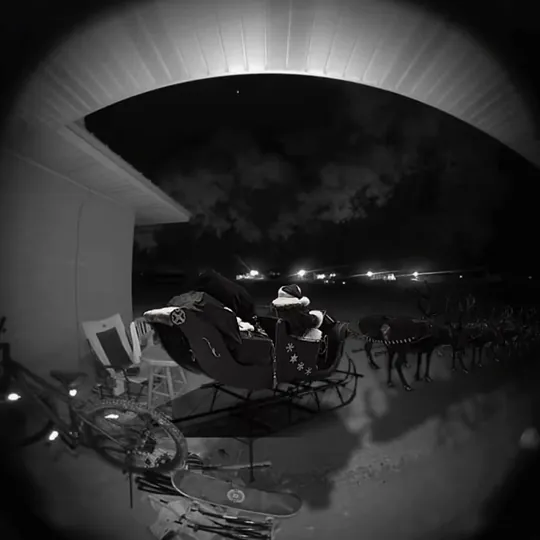
A frame from @frontdoorsanta's post on TikTok, December 2, 2025 (tap it to open the post): a Ring doorbell night view with Santa's sleigh in the yard.
| Date | What happened |
|---|---|
| Earlier Christmases | Camera companies such as Alarm.com let families add Santa to a still from their own security camera (#SantaSecurity) |
| November 14, 2025 | @frontdoorsanta posts "Santa caught on your Ring doorbell" (177K plays) |
| December 2, 2025 | @frontdoorsanta posts "Catch Santa outside YOUR house!" with sleigh in the yard (198K plays) |
| November 1, 2026 | @realityglitchz posts an AI porch-camera Santa clip (22K plays) |
Play counts as of November 6, 2026.
What Santa Does in the 10 Seconds
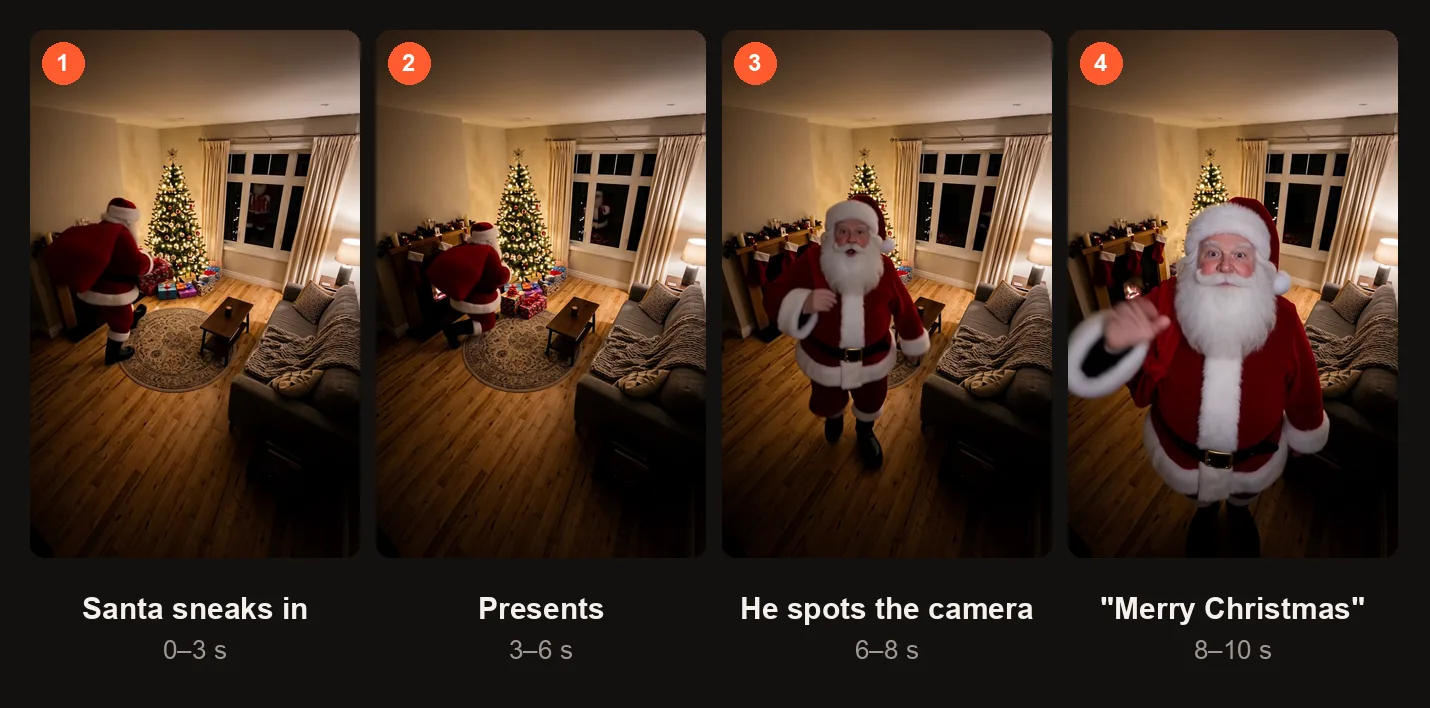
Four frames from the sample: Santa sneaks in, kneels by the tree, looks into the lens and waves.
| Time | What Santa does |
|---|---|
| 0–3 s | Sneaks in with a big red sack over his shoulder |
| 3–6 s | Kneels and sets wrapped presents under the tree (or by the door if there is no tree) |
| 6–8 s | Spots the camera, stands, walks toward it and looks into the lens |
| 8–10 s | Waves and says "Ho ho ho! Merry Christmas, [name]!" |
The sound is quiet room tone, faint sleigh bells and Santa's warm voice. Santa is the only person in a Santa caught on camera video.
What the Santa Cam Keeps From Your Photo
The Santa cam video uses the actual room in your photo.
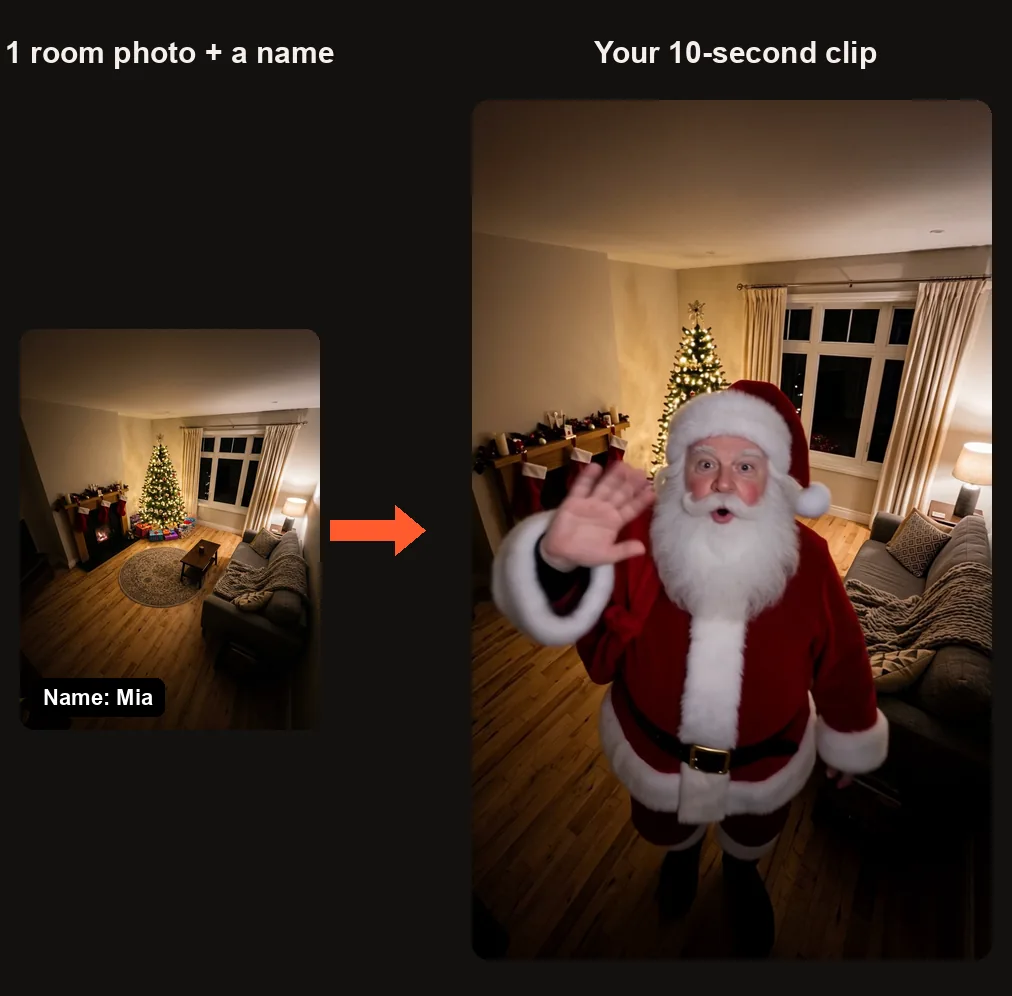
Left: the room photo and the name "Mia." Right: a frame from the finished video showing the same room with Santa inside.
| From your photo | From the template |
|---|---|
| Room layout and furniture | Night-time security camera look, mounted high in a corner |
| Christmas tree and decorations | Christmas light glow and a dim lamp |
| Fireplace and stockings | Santa with his sack and wrapped presents |
| Porch or front door | Santa's voice saying the name you typed |
How to Make a Santa Caught on Camera Video
Open the Santa Caught on Camera AI trend page. The studio runs in your browser on phone or computer. Nothing to download.
Step 1: Photograph the room
Take a wide photo of the room or porch where the Santa cam should be. Lights on, nobody in the shot. JPG, PNG or WebP, up to 10 MB. Tap the "Your room or porch" slot to add it.
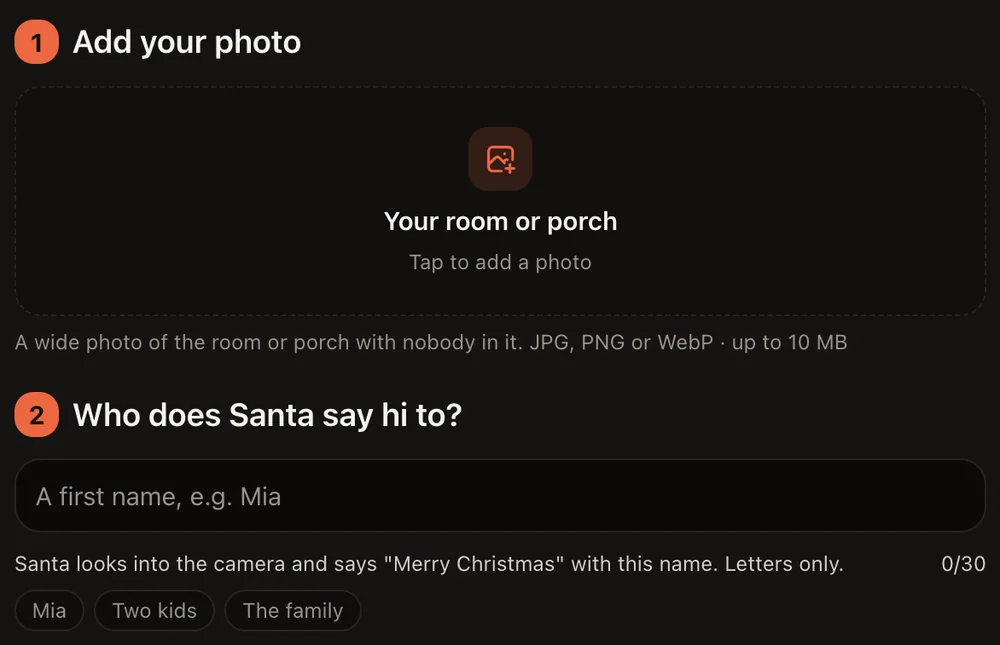
The empty steps: the room photo slot and the name box with example chips.
Step 2: Type the name
In the Santa caught on camera studio, the box labelled "Who does Santa say hi to?" takes a first name. Names can be 2 to 30 letters and at most 4 words — no numbers or symbols. The chips "Mia", "Two kids" and "The family" fill the box for you.
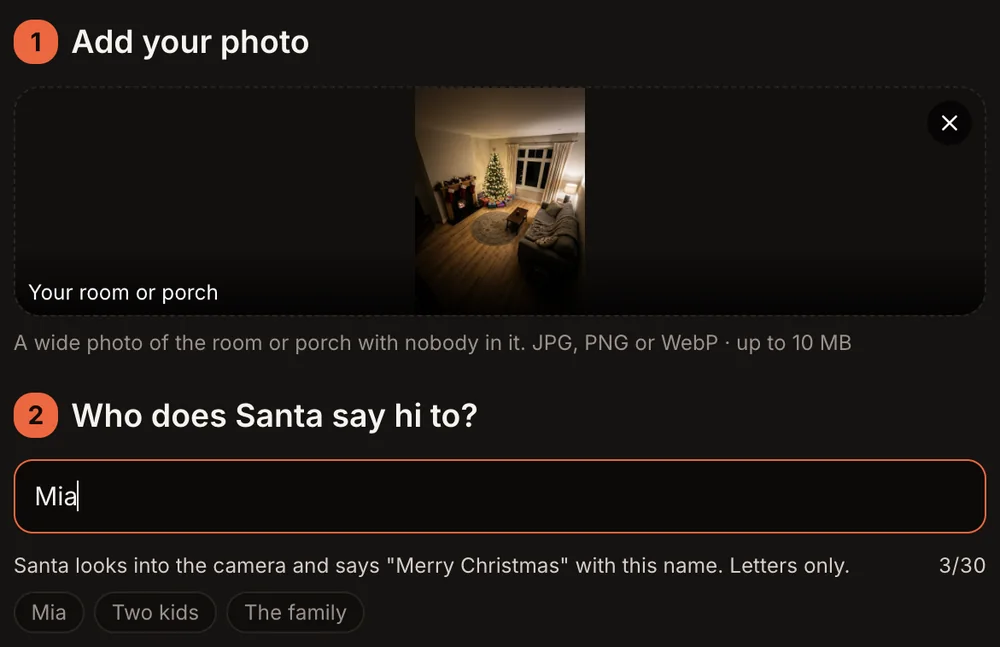
The same steps with the room photo added and "Mia" typed in the name box.
Step 3: Pick a format and quality
Choose 9:16 (TikTok · Reels), 16:9 (YouTube) or 1:1 (Feed). Then choose Standard (720p, 10 credits) or HD (1080p, 20 credits). Every video is 10 seconds. Tick the consent checkbox: "This is my home, or I may use this photo, and nobody is in it."
Step 4: Create and wait
Press the orange "Create · 10 credits" button ("Create · 20 credits" for HD) and sign in with Google if asked. The Santa cam video usually takes a few minutes; our sample took about two. You can close the tab; you will get an email when it is ready.
Step 5: Check and share
Open My videos. Your Santa cam video is there as an MP4 with no watermark. Press "Download MP4" to save it. The sound is original; to post with a trending Christmas sound, pick it in the TikTok or Instagram sound library when you upload.
Santa Cam Ideas for Christmas Morning
- TV playback before the tree. Cast the Santa cam clip to the TV right before the kids see the presents, so the footage feels like it was recorded overnight.
- The half-eaten cookie plate. Leave a bitten cookie beside a glass of milk, play the clip, then point to the plate: "See, he really was here."
- One clip per child. Make a separate Santa cam video with each child's name and send each one to the grandparents.
- The family post. Share the clip with a caption like "Our security camera caught something last night."
Best Photos for a Santa Cam Video
- Shoot from up high. A real Santa cam sits near the ceiling. Hold your phone above your head and angle it down.
- Show the tree and the floor. Santa needs room to walk in and kneel.
- Lights on, nobody in it. Leave the Christmas lights on. No people or pets in the frame.
- Porch or camera screenshot. For a front-door Santa caught on camera look, photograph your porch at eye level, or use a screenshot from your Ring or Nest app, which already has the Santa cam angle.
Common Problems and What to Try
| Problem | What to try |
|---|---|
| "Write the name Santa says: 2 to 30 letters, no numbers or symbols." | Remove numbers, emojis or special characters from the name. |
| "Santa cannot say that name. Try another one." | Try a nickname or a different spelling. |
| The room looks different from the photo | Use a well-lit, wide photo with the tree and floor visible. |
| The video clearly did not work | Press "Report a problem" in My videos within 7 days. Every report is reviewed and the credits or payment for that video are returned. |
Santa Caught on Camera FAQ
Does Santa really say my child's name?
Yes. Santa looks into the camera and says "Ho ho ho! Merry Christmas, [name]!" using the name you typed. The voice is generated with the Santa cam video.
Will my kids know it's AI?
The Santa cam clip looks like grainy night-time footage from a home camera, but it is made by AI. Whether you tell them is up to you.
Can I use a porch or front-door photo instead of a living room?
Yes. A porch photo taken at eye level gives a doorbell camera look, and Santa leaves the presents by the door.
How much does a Santa caught on camera video cost?
One-time credit packs start at $9.99 for 10 credits and never expire. Monthly plans start at $39.99 for 50 credits a month. A Standard Santa cam clip costs 10 credits; HD costs 20. There is no free trial. If a render fails, the credits come back automatically.
What formats does the Santa cam offer?
Three formats: 9:16 (TikTok · Reels), 16:9 (YouTube) and 1:1 (Feed). Every Santa cam video is 10 seconds, in Standard 720p or HD 1080p.
Is my photo private?
Photos and videos are private to your account and never shown in a public gallery.
Make Your Own
Searches for "Santa cam" and "Santa caught on camera" start climbing in November and peak in December, so the best time to make your Santa caught on camera video is before Christmas Eve. Open the Santa cam video maker, photograph your room, type a name and press Create.
For more, see the Santa video call guide or the Cardo Dinner AI guide.
Sources
- Alarm.com: How to catch Santa on your smart home security camera
- TikTok: @frontdoorsanta, "Santa caught on your Ring doorbell" (2025-11-14; 177K plays on 2026-11-06)
- TikTok: @frontdoorsanta, "Catch Santa outside YOUR house!" (2025-12-02; 198K plays on 2026-11-06)
- TikTok: @realityglitchz, AI porch-camera Santa (2026-11-01; 22K plays on 2026-11-06)
Updated November 6, 2026.