

How to Make a Santa Video Call
A step-by-step guide to making a video from Santa that looks like a real call, with your child's name and your own room on screen.
Every December, parents look for a way to let Santa talk to their kids. A Santa video call does it: Santa appears on the phone screen, says the child's name and tells them they are on the nice list. With Santa Video Call AI you can make one from a photo of your room and a name, ready in a few minutes.
What Is a Santa Video Call?
It is a 10-second video styled like a phone video call. Santa sits in his North Pole workshop, holds the phone himself, waves, says hello with the name you type and holds up his nice list. Your own room shows in the small self-view window in the corner, so the Santa video call looks like it came to your house.
It is a pre-recorded video from Santa, not a live call: Santa cannot hear or answer. That is also the point. You choose the exact moment, and you can watch it as often as you like.
Our sample Santa video call, made from a photo of an AI-made living room and the name "Lily": Santa waves, says "Ho ho ho! Hello, Lily! It's Santa, calling from the North Pole", then holds up his list. Ten seconds, 9:16, Standard 720p, made in about two minutes.
Where the Santa Video Call Came From
A Santa video call can be live or pre-recorded. Live calls need a booked time slot and a Santa actor on the other end. Pre-recorded videos from Santa have been around for well over a decade; one well-known service says it has made them since 2008. Either way, the idea is the same: Santa on a screen, talking to one child by name. The name is the part kids remember, which is why a video from Santa that says it feels personal.
Searches for it climb from November and peak in December. These are US monthly searches from Google Keyword Planner for December 2025:
| Search (US) | December 2025 |
|---|---|
| santa facetime | 22,200 |
| santa video call | 18,100 |
| video from santa | 18,100 |
| call from santa | 12,100 |
The Santa Video Call, Second by Second
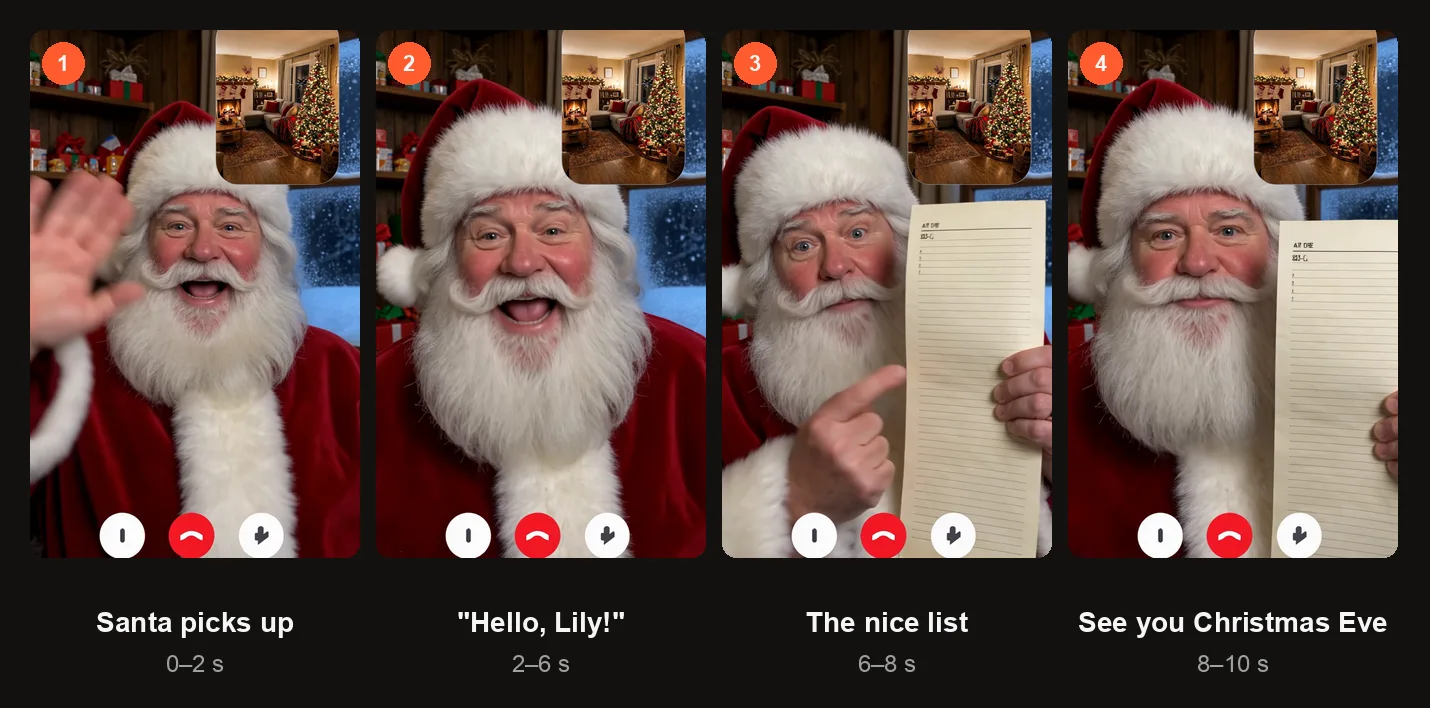
Four frames from the sample: Santa picks up, says the name, shows the nice list and signs off.
| Time | What happens |
|---|---|
| 0–2 s | The call connects. Santa leans into the camera in his workshop and waves |
| 2–6 s | "Ho ho ho! Hello, [name]! It's Santa, calling from the North Pole." |
| 6–10 s | He holds up his long paper list and taps it: "You're on my nice list this year! See you on Christmas Eve!" Then a wink |
The workshop has wooden toy shelves, wrapped presents and snow falling past a frosted window. At the bottom are round call buttons with a red one in the middle, with no words or logos. The sound is only Santa's voice, faint sleigh bells and a crackling fire, with no music.
What the Video Keeps From Your Photo
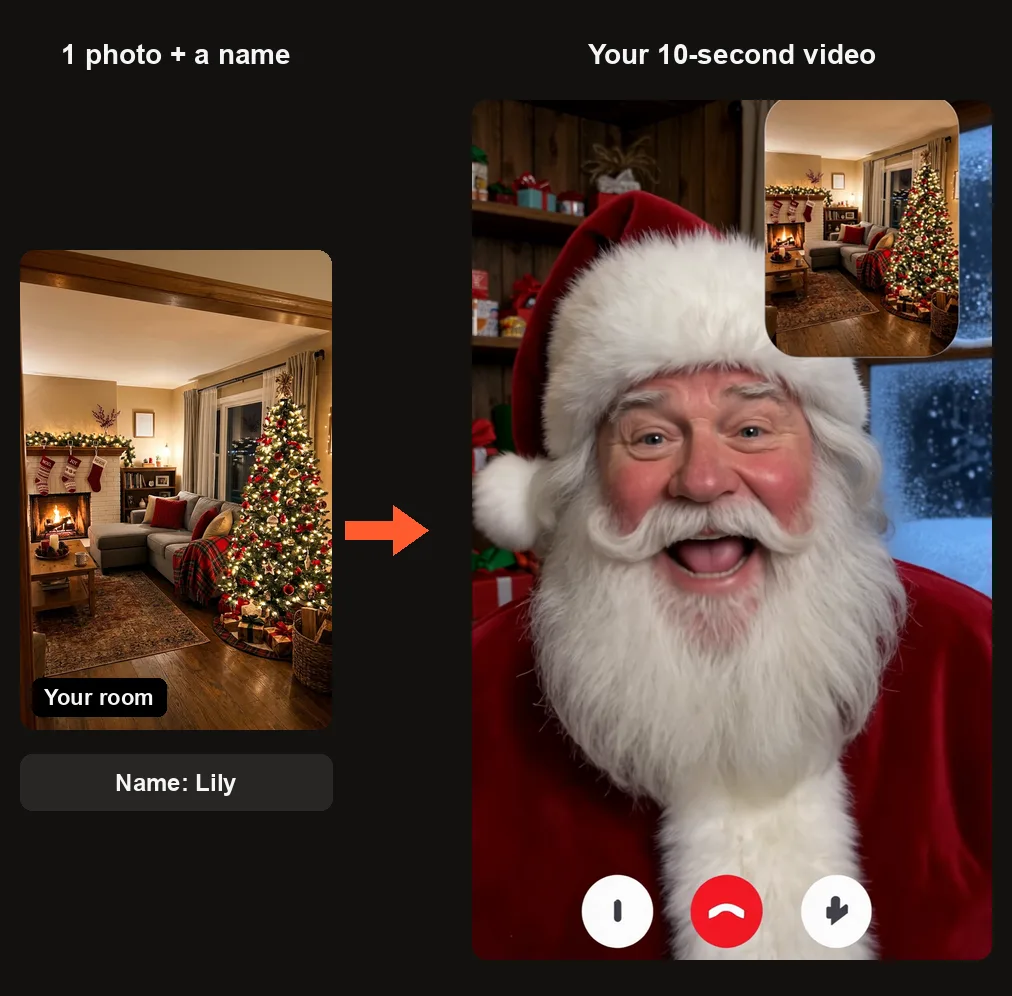
Left: the room photo and the name. Right: a frame from the finished call, with the room in the corner window.
| From your photo | From the template |
|---|---|
| Your room, shown in the self-view window | Santa and his North Pole workshop |
| Furniture, tree and decorations | The nice list and the call layout |
| The name you type | Santa's voice saying that name |
Santa is the only person in the Santa video call, and the room photo must be empty, so no child's face goes into it. The name is the only personal detail, and Santa reads it next to his nice list, the list every child wants to be on.
How to Make a Santa Video Call
Open Santa Video Call AI. It runs in your phone or computer browser; there is nothing to install.
Step 1: Add a photo of the room
Under "Add your photo", tap the "Your room" slot. The note says: "A photo of the room with nobody in it; it shows in the small window." JPG, PNG or WebP, up to 10 MB.
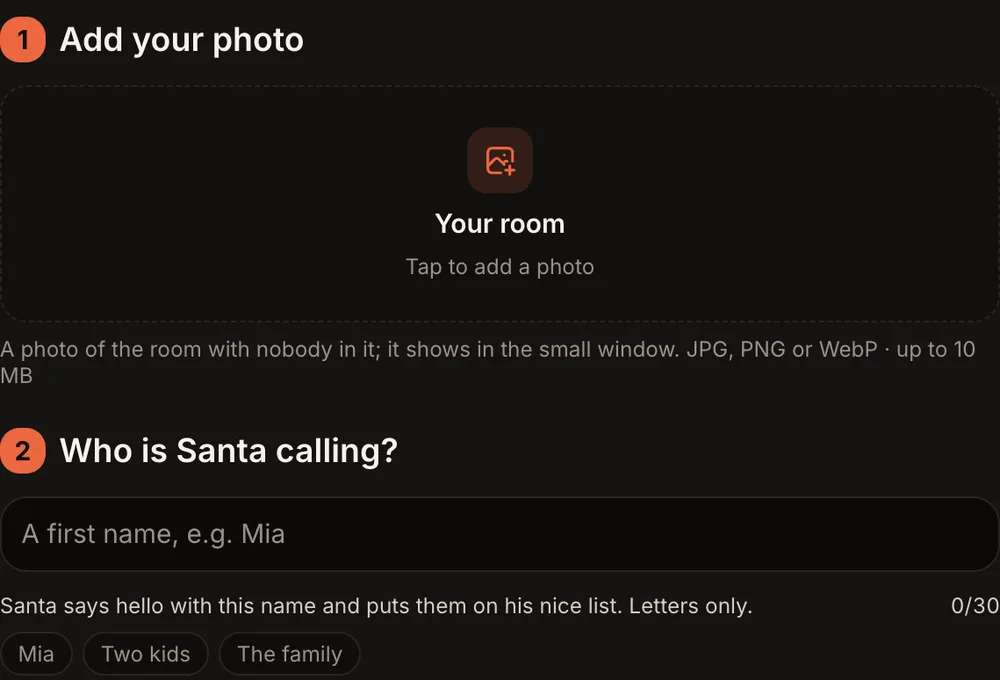
The empty steps: the room slot and the "Who is Santa calling?" box with example chips.
Step 2: Type the name
The box "Who is Santa calling?" takes the name Santa says: 2 to 30 letters, at most 4 words, no numbers or symbols. The chips "Mia", "Two kids" and "The family" fill it for you, and "Leo and Ava" works for siblings. Check the spelling: Santa says the name exactly as you type it.
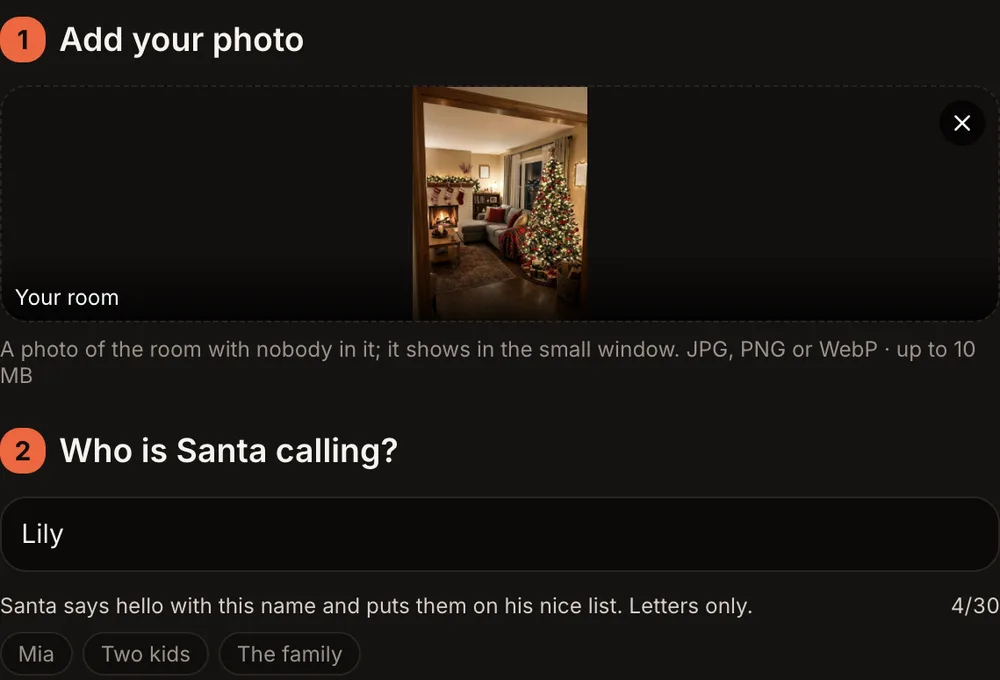
The same steps with the room photo added and "Lily" typed.
Step 3: Pick a format and quality
Under "Format and quality", choose 9:16 (TikTok · Reels) for the phone call look, 16:9 (YouTube) for a laptop or TV, or 1:1 (Feed). Then Standard (720p, 10 credits) or HD (1080p, 20 credits).
Step 4: Create
Tick "This is my home, or I may use this photo, and nobody is in it." and press the orange "Create · 10 credits" button. Sign in with Google if asked. You can close the tab; we email you when the video from Santa is ready.
Step 5: Download and save it
Open My videos and press "Download MP4". The file has no watermark. Keep it on your phone, ready for the right moment before Christmas.
Ideas for Your Video From Santa
- The nice list reveal. Show the Santa video call on December 1 to start the countdown to Christmas.
- Christmas Eve bedtime. One last call from Santa before bed: "See you on Christmas Eve!"
- The phone rings. Hand your child the phone with the clip paused on the first frame, then press play.
- For the grandparents. Make one Santa video call per grandchild and send them to the family chat.
- A video from Santa for each child. Make one per child with their own name, so nobody has to share the nice list.
Best Photos for a Santa Video Call
- Show the tree. A lit tree in the photo makes the small window look like Christmas at your house.
- Nobody in it. No people, pets or faces in the photo.
- Lights on. Turn on the lamps and tree lights so the room reads clearly in the corner window.
- Wide, not close. Show the whole room, not one corner, so the small window reads as a real room.
- Eye level is fine. Unlike a camera view, a normal photo from standing height works well.
- Show it on a phone. Choose 9:16 and open the video from Santa full screen on a phone, so it feels like a call coming in.
Common Problems and What to Try
| Problem | What to try |
|---|---|
| "Write the name Santa says: 2 to 30 letters, no numbers or symbols." | Remove numbers, emojis or symbols from the name |
| "Santa cannot say that name. Try another one." | Try a nickname or a different spelling |
| The room in the window is hard to see | Use a brighter, wider photo with the lights on |
| The video clearly did not work | Press "Report a problem" in My videos within 7 days. Every report is reviewed and the credits or payment for that video are returned |
Santa Video Call FAQ
Is it a live call with Santa?
No. It is a pre-recorded video from Santa styled like a video call. Santa cannot hear or answer, so play it as a surprise.
Is this a FaceTime call?
No. It is an MP4 with no app names or logos, so it plays on any phone, tablet or TV.
Can Santa greet two kids in one call?
Yes. Type both names, like "Leo and Ava", and Santa says them together.
How much does a Santa video call cost?
A Standard video costs 10 credits and HD costs 20. One-time packs start at $9.99 for 10 credits and never expire; monthly plans start at $39.99 for 50 credits a month. There is no free trial, and a failed render is refunded automatically.
When should I show the video from Santa?
Any time before Christmas. Many parents save a video from Santa for December 1, on Christmas Eve or as a reward on a good day. Make it once the tree is up so the corner window shows the Christmas lights.
Can I play it on the TV?
Yes. Choose 16:9 and play the video from Santa on the TV on Christmas morning, or cast it from your phone, so the whole family watches Santa hold up the nice list.
How is it different from the Santa cam?
In Santa Caught on Camera, a home camera catches Santa leaving presents in your room. In the Santa video call, Santa calls from the North Pole. Many families make both.
Make Your Own
Make your Santa video call once the tree is up and keep it ready for the right moment. Open the Santa video call maker, add a photo of your room, type a name and press Create.
For more, see the Santa Caught on Camera guide or the Cardo Dinner AI guide, another trend with spoken lines.
Sources
Updated November 7, 2026.